 El Tablero
Getting started
A guide for the administrator of a new congregation.
Before you begin
- Install the app. On iPhone, iPad and Mac, from the App Store. On another computer or on Android, go to app.eltablero.org.
- Sign in. Enter the congregation name exactly as I sent it to you, your name and the temporary password.
- Change your password in Settings › Change password.
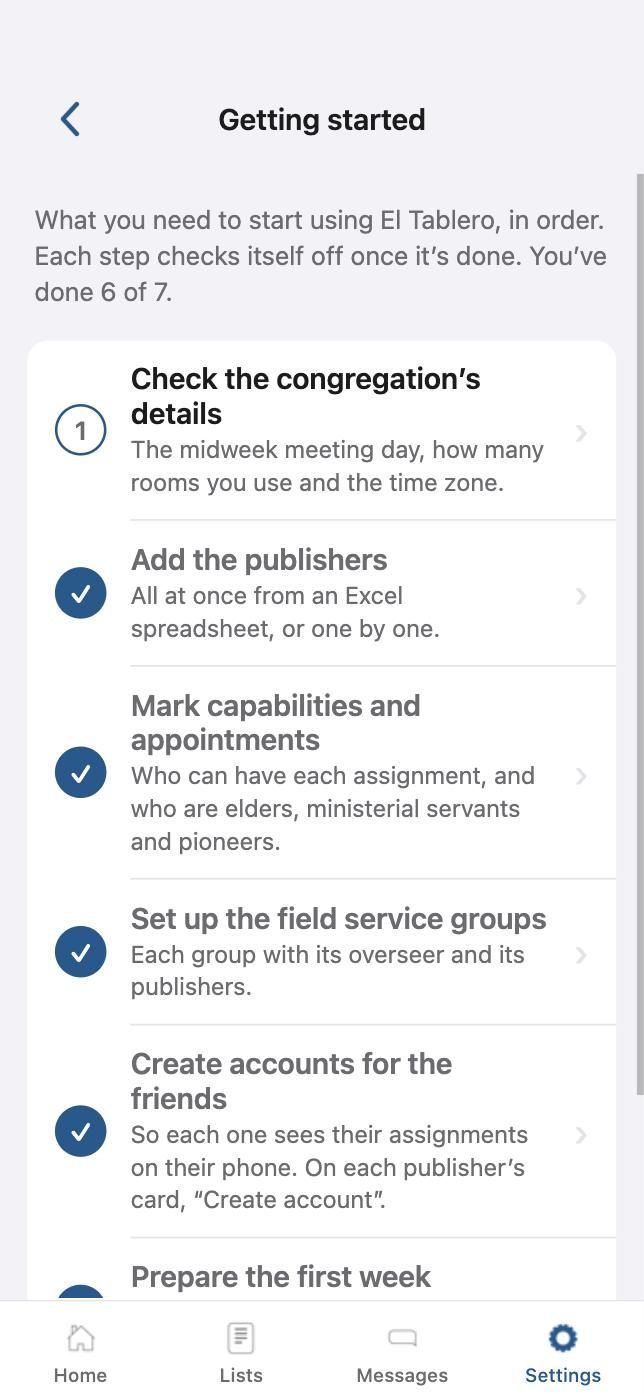
When you sign in, you'll see the Getting started card on the Home screen; it's also in Settings. It has the same steps as this page: tap one to go to the screen where it's done, and each step checks itself off when it's finished.
The steps
Check the congregation’s details
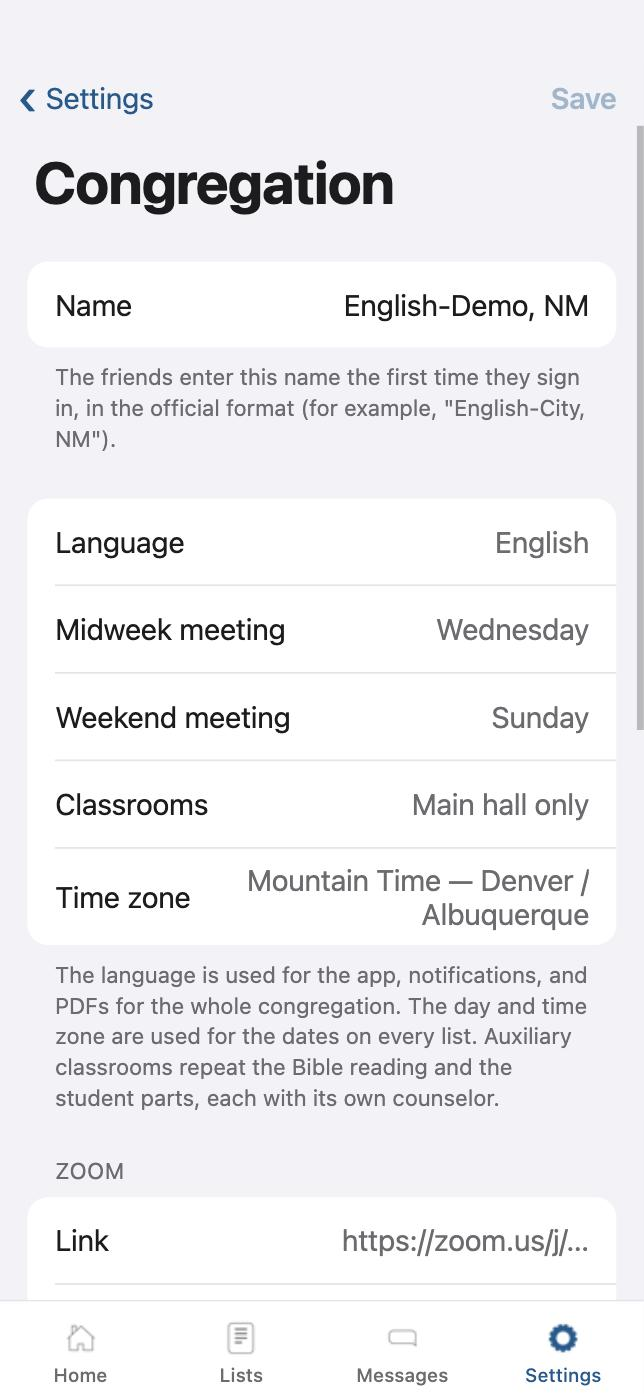
In Settings › Congregation: the day of the midweek and weekend meetings, how many rooms you use and the time zone.
The congregation name is what everyone types the first time they sign in.
Add the publishers
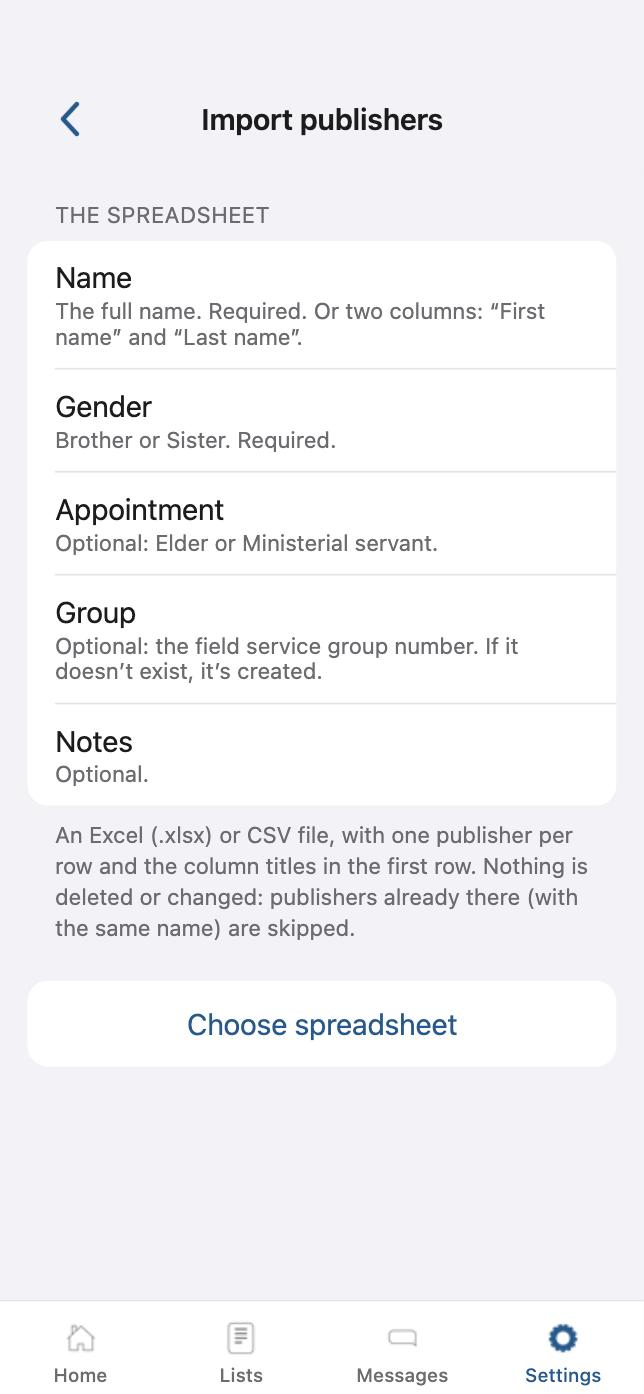
All at once in Settings › Publishers › New publisher › Import from a spreadsheet, with an Excel (.xlsx) or CSV file: one publisher per row and the column titles in the first row.
Columns: Name (or “First name” and “Last name”), Gender (Brother or Sister) and, if you like, Appointment (Elder or Ministerial servant), Group (the field service group number) and Notes.
Nothing is deleted or changed: publishers already there are skipped. You can also add them one by one, on the same “New publisher” screen.
Mark capabilities and appointments
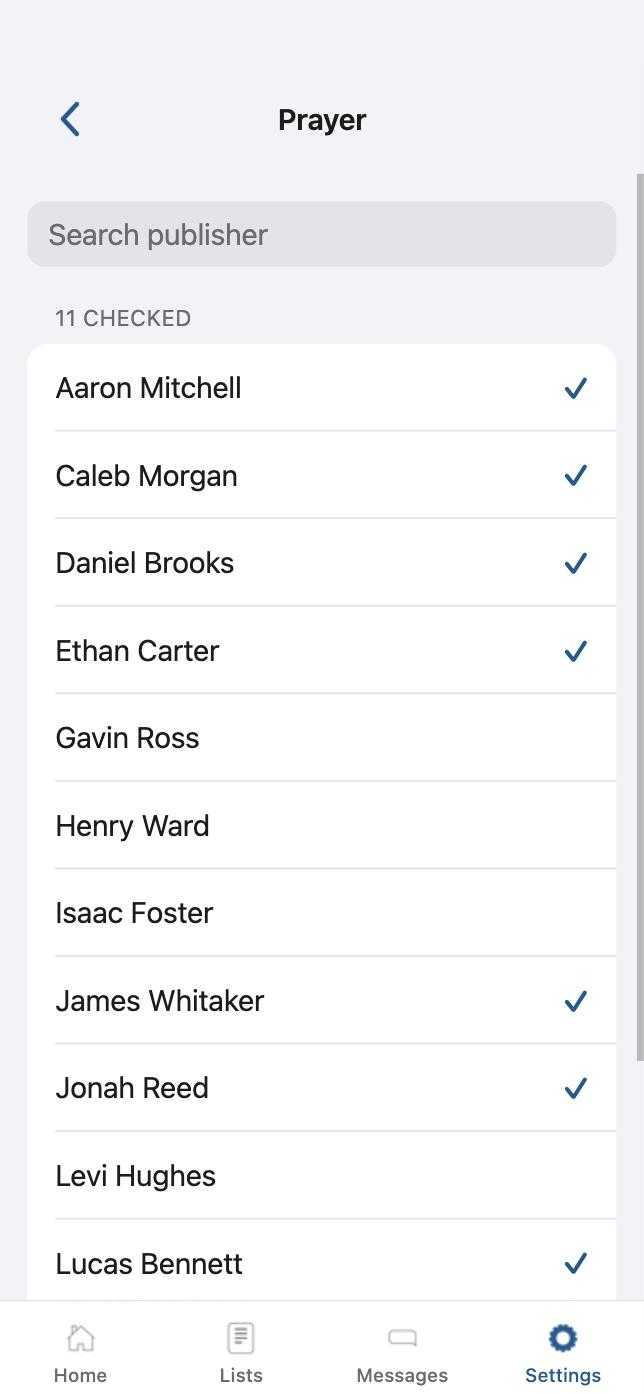
Who can have each assignment (chairman, prayer, Bible reading, attendants, audio…), and who are elders, ministerial servants and pioneers.
The quickest way is Settings › Publishers › Mark by list: choose a capability and check everyone who has it. You can also do it on each publisher’s card.
Set up the field service groups
In Settings › Congregation, each group with its overseer and its publishers. If your spreadsheet had a “Group” column, they’re already created.
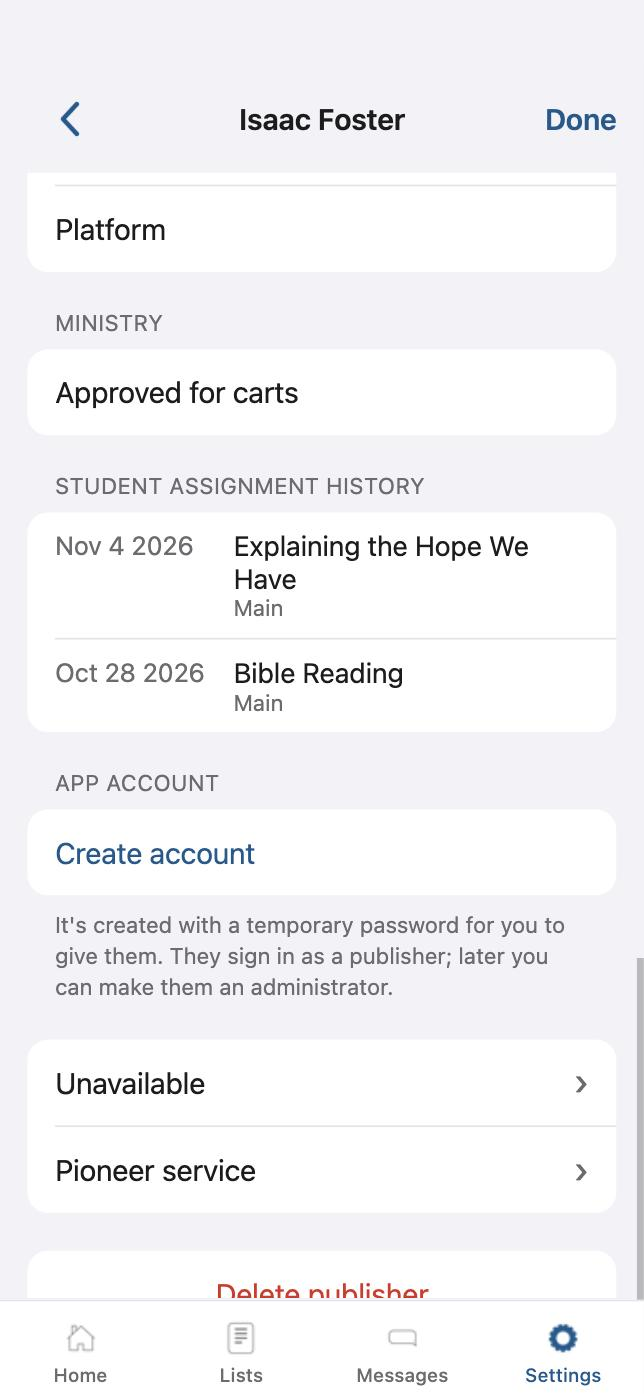
Create accounts for the friends
So each one sees their assignments on their phone. On each publisher’s card, tap Create account.
The app gives you a temporary password and a Share button with a message ready to send: their name, their password and the link to install the app.
Prepare the first week
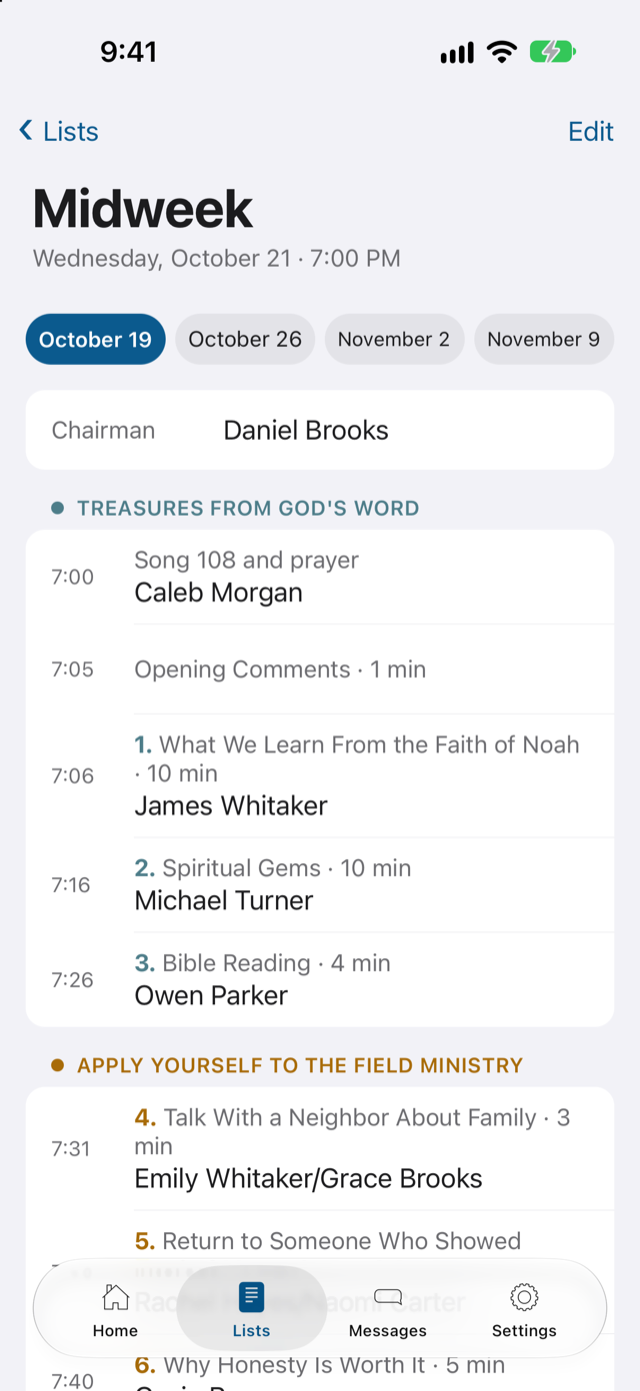
In the Midweek tab, tap Edit and then New week: enter the schedule and automatic assignment suggests who gets each part. You can change anything you like.
The congregation sees nothing until you publish it: Publish students and Publish other parts. When you publish, each one is notified of their assignment.
Add the territoriesOptional
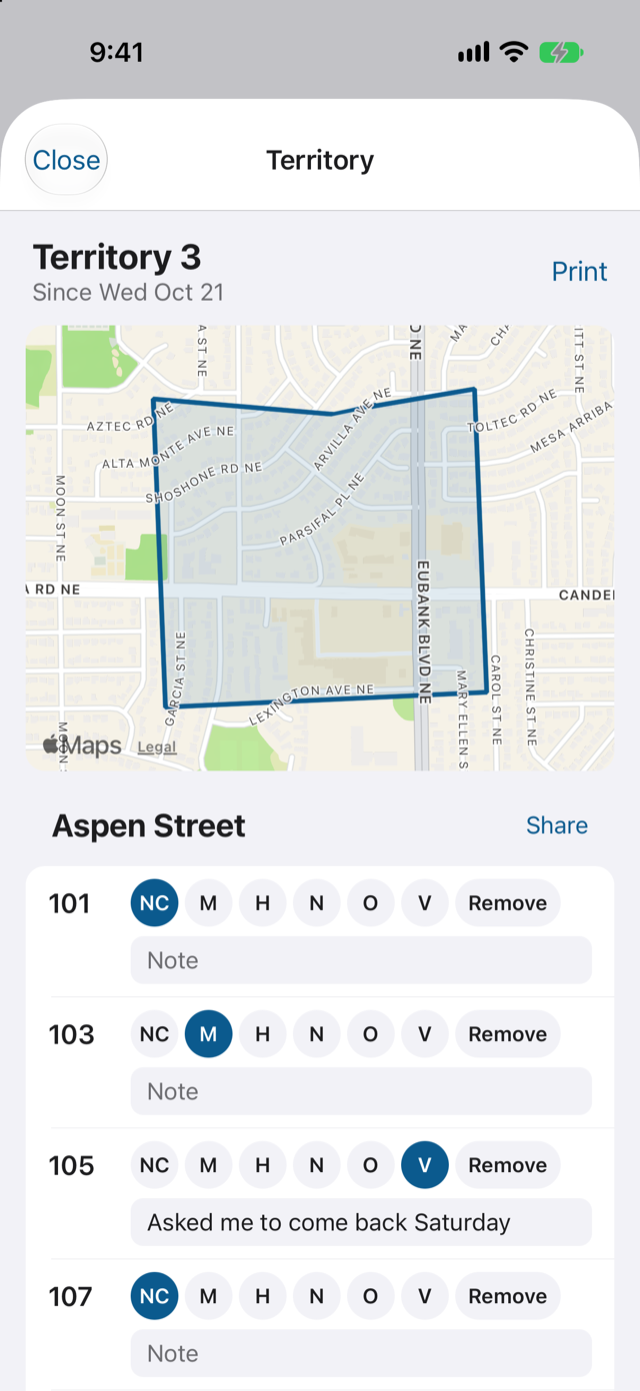
In Settings › Territories, one by one or all from a spreadsheet, with their addresses.
Afterward
- The other lists (Weekend, Support, Carts and Cleaning) are prepared the same way: Edit, make the changes and Publish.
- Any administrator can reset a brother’s or sister’s password from their card if they forget it.
If you get stuck on any step, write to me at info@eltablero.org. I’m happy to help.